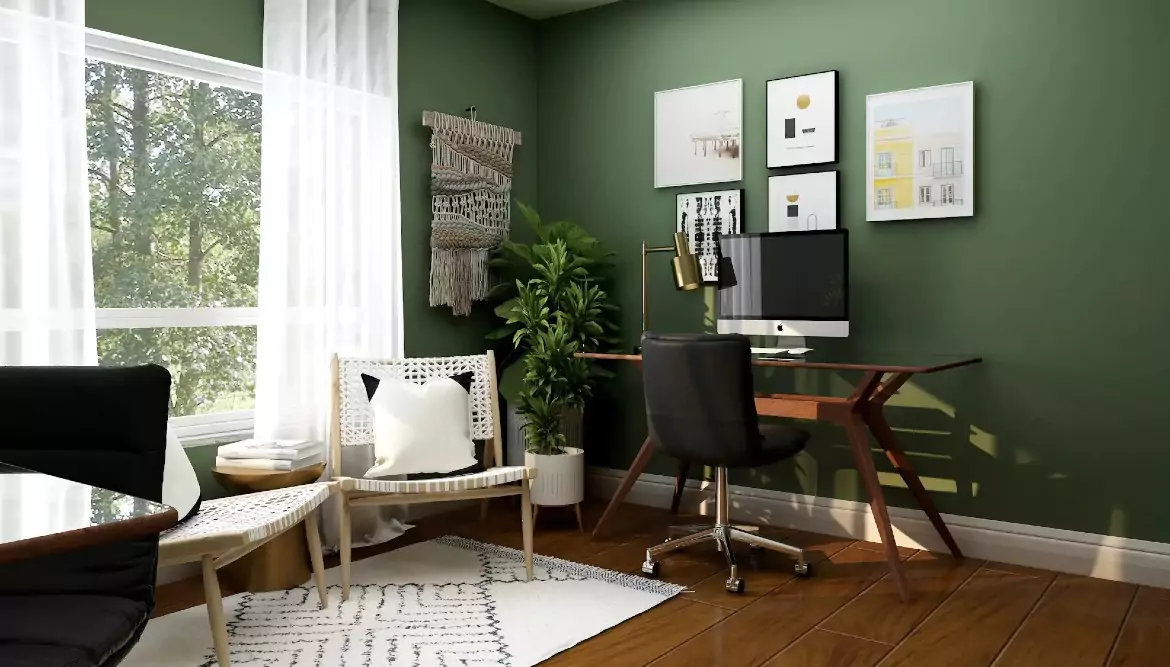
Working remotely has become a standard for many professionals, and setting up a home office in your vacation home rentals can blend work with the comfort of a getaway. You can create a productive workspace in your vacation home with the right planning and organization. This guide will walk you through the steps to set up a functional home office, ensuring you have everything you need to work efficiently.
Choosing the Right Space
The first step in setting up a home office in your vacation home is to identify a quiet area. Look for a space away from high-traffic areas to minimize distractions. A spare bedroom, a living room corner, or even a dedicated section of the garage can work well.
Assess Natural Light
Natural light boosts productivity and well-being. Choose a spot with plenty of natural light to keep your workspace bright and inviting. Consider investing in good-quality artificial lighting if your area lacks sufficient natural light.
Consider the View
A pleasant view can enhance your working environment. If possible, set up your home office in a space with a window that offers a nice view. This can provide a refreshing break from your screen and contribute to a more pleasant working experience.enhance your
Furnishing Your Home Office
Essential Ergonomic Equipment for Traveling Professionals
Outfitting a portable, ergonomic workspace is just as important when you’re on the move as it is at your vacation home. Whether you’re working from a hotel, a borrowed office, or a temporary desk, a few well-chosen essentials can make a dramatic difference in comfort and productivity.
Foldable Monitor Stand or Bed Table
A slim, foldable monitor stand—or even a lightweight bed table—can elevate your laptop to eye height, reducing neck and back strain. Look for options that collapse flat, making them easy to pack in your luggage. In a pinch, you can use a stack of books or magazines to achieve the right height, aiming for incremental improvements even if the setup isn’t perfect. Unlike in a traditional office, you may not have control over the furniture available. Hotel desks, rental tables, or living room coffee tables aren’t always the ideal height for long work sessions. A foldable monitor stand allows you to raise your laptop screen to eye level, helping prevent that classic “tech neck” and reducing strain on your back and shoulders.
The beauty of these stands is their portability—they fold flat, slide easily into your luggage, and set up in seconds, whether you’re working from a spare bedroom or a patio table. If you need to boost the height even further, books or sturdy boxes can help you get just the right setup. While you might not always achieve the perfect ergonomic workstation, using a foldable monitor stand brings you much closer to a comfortable, healthy posture, wherever your remote work takes you.
Travel Keyboard and Mouse
A compact, thin keyboard and mouse are must-haves for any mobile workspace. They’re easy to transport and help keep your wrists in a comfortable position. If you use wireless devices, be mindful to either remove batteries before checking your luggage or keep non-removable battery devices in your carry-on during flights.
Adapters and Power Solutions
Traveling often means dealing with a variety of plugs and ports. A small pouch with essential adapters—such as HDMI or USB-C hubs—can save you from connection woes when using different monitors or conference setups. If you’ll be crossing borders, pack a multi-country power adapter with built-in USB ports. This enables you to keep all your devices powered up, no matter where your adventures take you.
Handy Extras
- USB flash drives for data transfer on the go
- Compact surge protector to protect your devices from unexpected power issues
- Portable laptop stand for greater flexibility in tight spaces
With these essentials in your travel kit, you’ll be prepared to set up a comfortable, ergonomic workspace—no matter where you find yourself working next.
Desk and Chair
Investing in a suitable desk and an ergonomic chair is essential. Choose a desk with enough surface area for your computer, paperwork, and other office supplies. An ergonomic chair supports your posture, reducing the risk of back and neck pain.
Storage Solutions
Efficient storage is crucial for keeping your home office organized. Incorporate shelves, filing cabinets, or storage bins to keep documents and office supplies tidy and easily accessible. This helps maintain a clutter-free environment, boosting productivity.
Additional Considerations
If your vacation home serves multiple purposes, you might need to think about storing expensive furniture pieces. Proper storage solutions can protect these items from damage while keeping your workspace clear and functional. Consider using storage units or dedicated rooms within your vacation home to store valuable furniture safely when not in use. This approach helps maintain a tidy and organized office environment, allowing you to focus on your work without distractions.
Health and Productivity Risks of a Makeshift Home Office
Relying on a makeshift or poorly designed home office setup might seem convenient at first, but it can lead to a range of problems over time. One of the most common issues is discomfort caused by improper furniture and poor ergonomics, which can result in back, neck, and wrist pain. Without the right equipment or a supportive chair, you may find yourself slouching or awkwardly positioned for hours, increasing your risk of repetitive strain injuries such as carpal tunnel syndrome.
Additionally, working in a space that isn’t specifically arranged for productivity—like using your kitchen table or the couch—can make it harder to concentrate, leading to lost focus and decreased work output. Over time, these discomforts and distractions build up, potentially impacting both your well-being and your ability to get work done efficiently.
For those who are self-employed or working remotely for an employer, neglecting your physical workspace can also have financial implications. Persistent strain or injury may result in missed workdays or even longer-term health challenges, all of which disrupt your routine and bottom line. Taking the time to set up a well-organized, ergonomic office space is an investment in both your health and productivity.
Setting Up a Portable Office for Traveling Professionals
For those who find themselves working on the go—whether you’re hopping between vacation rentals or clocking in from a kitchen table—an adaptable, ergonomic portable office setup is invaluable. With a little planning, you can maintain comfort and productivity wherever your work takes you.
Essential Portable Gear
Start with a slim, foldable laptop stand. This simple tool helps you elevate your laptop screen to a more natural viewing height, reducing neck and eye strain. If space allows, consider packing a compact, external monitor for an extra productivity boost. When lugging larger gear isn’t an option, a stand alone still makes a noticeable difference—and you can improvise with books in a pinch.
Next, pack a travel-sized keyboard and mouse. Choose low-profile, lightweight options that slip easily into your bag. If these devices use batteries, remember to remove or secure them for air travel. It’s always wise to keep rechargeable or non-removable battery devices in your carry-on.
Adapters and Power Solutions
Compatibility is key if your office changes weekly. Keep a small pouch with key adapters—HDMI, USB-C, USB-A, and any video connectors your devices might require. This allows you to plug into conference room screens or connect unexpected peripherals with ease.
If your travels may cross borders, invest in a universal travel adapter. Modern units by brands like Anker or Epicka often feature built-in USB ports, letting you charge multiple devices from a single wall outlet—handy if power plugs are a precious commodity.
Final Touches for Productivity
Don’t forget to bring a portable surge protector. It keeps your tech safe from unexpected power issues and provides bonus outlets. Throw in some cable organizers or Velcro ties to keep cords tidy on the go. This small bit of organization prevents tangles and keeps your mobile workspace neat—no matter where you set up shop.
By assembling these portable essentials, you’ll be ready to work comfortably and efficiently from any destination—be it a rented beach house, a mountain cabin, or a cozy urban studio.
Technology and Equipment
Ensure your home office is equipped with the necessary technology and equipment. This includes a reliable computer, a high-speed internet connection, a printer, and other tools specific to your job. Setting up a surge protector can safeguard your electronics.
Cable Management
Messy cables can be distracting and hazardous. Use cable organizers or clips to keep cords and cables neatly arranged. Labeling cables can also make them easier to identify and manage.
Wi-Fi Standards and Equipment Recommendations
For a reliable home office network, choose equipment that supports modern Wi-Fi standards. Opt for a router that offers at least 100 Mbps for wired connections—many current models go up to 1 Gbps or more, which can easily handle video calls, cloud backups, and large file transfers.
When it comes to wireless connectivity, look for routers compatible with Wi-Fi 5 (802.11ac) or the latest Wi-Fi 6 (802.11ax) standards. These options provide faster speeds, better coverage, and greater stability, which are essential for uninterrupted virtual meetings and productivity. Dual-band routers—operating on both 2.4GHz and 5GHz frequencies—are ideal for managing multiple devices, from laptops and tablets to smart home gadgets or older electronics that may still use previous Wi-Fi standards (such as 802.11n).
By investing in up-to-date networking equipment, you’ll ensure your home office stays connected and able to support all your professional needs.
Choosing the Right Internet Set Up
Internet Speed
A fast, reliable internet connection is essential for remote work. For most home offices, aim for a minimum download speed of 50 Mbps to ensure smooth video calls, file uploads, and online collaboration. If several people will be online simultaneously—whether attending virtual meetings, streaming, or working—consider upgrading to a higher-speed plan for seamless performance. Companies like Xfinity, Spectrum, and AT&T offer a variety of packages to meet different needs, so be sure to choose one that fits your household’s usage.
Stable, high-speed connectivity helps prevent interruptions, keeping your workday efficient and stress-free.
Set up Reliable Internet
A strong internet connection is the backbone of a productive home office. While high-speed Wi-Fi is more than suitable for emails and general office tasks, those who rely on video calls, large file transfers, or other data-intensive activities will benefit from taking things up a notch.
Wired vs. Wireless Connections
If your workday involves regular video conferencing or managing hefty design files, consider connecting your computer directly to your router with an Ethernet cable. Wired connections offer greater stability and speed compared to Wi-Fi, reducing the chances of unexpected drops or lag during important meetings. Unlike Wi-Fi—which can be affected by walls, distance, or other household devices—a wired setup delivers consistent bandwidth right where you need it most.
For households with multiple people online at once, opting for a wired connection ensures you get the most from your available internet speed. Think of it as the express lane on the digital highway—fewer slowdowns, fewer interruptions, and a smoother workday overall.
Be sure to select an internet plan with speeds of at least 50 Mbps, especially if several users or devices are sharing the connection. The more robust your setup, the more flexibility and productivity you’ll enjoy.
Selecting the Right Monitor Size and Resolution
Choosing an appropriate monitor is key to a comfortable and efficient remote workspace. For most home offices, a display in the 25- to 27-inch range strikes a great balance—large enough to accommodate multitasking, reference materials, and video calls, yet compact enough for typical vacation home desks.
When it comes to resolution, sharper displays can make a noticeable difference, especially during long workdays. Consider monitors offering QHD (2560 x 1440), WQHD, or 4K UHD resolutions, as these deliver crisp images and reduce eye strain even after hours of use.
It’s also worth double-checking your computer’s video output capabilities. Some older HDMI ports, for example, might limit how sharp your monitor can display—so for the best results, use monitors and cables that support HDMI 2.X, DisplayPort, or USC-C, and match your monitor’s maximum resolution to what your computer can handle. This thoughtful pairing ensures you get the clearest visuals, contributing to a more pleasant and productive workspace.
Keyboard and Mouse Essentials
When using your laptop with an external monitor, it’s a good idea to have an external keyboard and mouse (or touchpad). Since most people keep their laptops closed or placed off to the side to save desk space, reaching the built-in keyboard and trackpad quickly becomes inconvenient and awkward. An external setup lets you position your keyboard and mouse exactly where you need them, helping you maintain good posture and a comfortable workspace. Choose options that fit your hands well and are responsive—your wrists and shoulders will thank you after a long day at the desk.
When choosing a keyboard and mouse for your remote work setup, portability and practicality are key factors. Look for slim, lightweight models that are easy to pack and won’t take up too much space in your luggage. Wireless options are popular for their convenience, but be mindful of travel regulations—removable batteries should be taken out if you’re checking your bags, while devices with built-in batteries need to stay in your carry-on.
Consider these tips when selecting your gear:
- Size and Weight: Opt for compact designs to save space and make transportation simpler.
- Wireless Versatility: Bluetooth or USB-receiver models reduce cable clutter and increase flexibility in your setup.
- Battery Safety: Understand airline rules. If your devices have removable batteries, pack them separately. For built-in batteries, keep devices with you in your carry-on.
- Comfort: Even on the go, ergonomic features matter. Choose a keyboard and mouse that offer comfortable typing and navigation for extended use.
This thoughtful selection helps ensure your workspace is not only organized but also travel-ready and efficient.
Keyboards and Mice: Wired vs. Wireless
When choosing between wired and wireless keyboards and mice for your vacation home office, it’s worth weighing the advantages of each option. Both can support a comfortable and efficient workflow, but your personal preferences and work habits may influence your decision.
Wireless Options
Wireless keyboards and mice offer the benefit of a cleaner, more streamlined workspace—no tangled cords to contend with or limit your placement. They’re excellent for flexible setups or if you like to move around or reconfigure your desk occasionally. However, wireless devices do require batteries or periodic recharging, so it’s wise to keep spare batteries or a charging cable handy to avoid unexpected interruptions.
Wired Options
Wired keyboards and mice, on the other hand, provide a steady and reliable connection—no need to worry about battery levels or potential signal interference. They’re typically “plug and play,” which means quick, hassle-free setup. The downside is dealing with cords, which may add some clutter to your workspace.
Finding the Right Fit
Ultimately, the right choice comes down to your workflow and comfort. If you prefer minimalism and portability, wireless devices are the way to go. For those who value uninterrupted connectivity and don’t mind the extra cords, wired options are dependable and fuss-free. Whichever you choose, make sure your keyboard and mouse are comfortable for your hands and conducive to good posture, supporting those longer stretches of focused work.
Do You Still Need a Printer?
While paper documents are less common in today’s digital workspaces, having a printer can still be surprisingly useful. Even if you don’t print often, a multifunction printer that also scans and copies comes in handy for tasks like signing documents, scanning receipts, or quickly making copies of travel paperwork.
When choosing a printer for your home office, consider a laser multifunction model from reputable brands such as Brother or HP. Laser printers tend to be more cost-effective in the long run than inkjet models. They operate reliably even if you go weeks without printing, and you won’t face issues like dried ink cartridges.
If your work occasionally requires faxing, many multifunction printers include this capability as well—just check for a fax feature before purchasing. For most remote professionals, investing in a compact, reliable multifunction printer ensures you’re prepared for any last-minute paperwork, without cluttering your workspace or overspending on unnecessary features.
Choosing a Multifunction Printer With Fax Support
When selecting a printer for your home office, you might wonder if fax capability is necessary. Many modern multifunction printers, like those from Cannon or Brother, include fax features alongside printing, scanning, and copying. While faxing is rarely needed these days, having a fax option could be useful in fields that still require it, such as legal or healthcare work.
If you rarely send or receive faxes, you might not use this feature often, but it’s convenient to have if the situation arises. Plus, multifunction printers with fax support often let you route your phone line through the device, which can make call management simpler in your workspace. If you anticipate any need for faxing—or simply prefer to be prepared—a multifunction printer with fax capability is a smart, future-proof addition to your setup.
Printer, Copier, and Scanner: Why Choose Laser?
When it comes to selecting a multifunction device for your home office, a laser printer/copier/scanner offers several key benefits over inkjet models. First, laser printers are more cost-effective for ongoing use; their toner cartridges last significantly longer and print more pages per refill, which means you’ll save money on supplies in the long run.
They’re also ideal if you print infrequently, as they won’t suffer from the dried-ink issues common with inkjet printers that sit idle—no more frustrating clogs or maintenance headaches. Additionally, laser units typically offer faster printing speeds and better durability, making them a practical choice if you want a hassle-free device that’s ready whenever you need to print, copy, or scan.
Power Backup: Should You Invest in a UPS?
When considering power backup options for your home office, you might wonder whether an uninterruptible power supply (UPS) is worth it. The answer depends on your setup and workflow needs. If you typically use a laptop, the built-in battery already provides protection against sudden power outages, so a UPS isn’t strictly necessary.
However, if you’re working with a desktop computer, a UPS can be a smart addition. Even a compact model will give you enough time to save your work and safely shut down your system during unexpected outages. Larger UPS units offer extended backup—sometimes enough to keep you running for an hour or more. Just keep in mind, if your internet router isn’t connected to the UPS (and your overall service is out), connectivity may still be interrupted.
Ultimately, a UPS is best suited for situations where you need extra protection from brief power disruptions—or want to ensure you won’t lose unsaved work during a blackout. It’s peace of mind, especially in areas prone to power fluctuations or storms.
Headsets vs. Earbuds for Long Meetings
When it comes to audio for long online meetings, choosing the right equipment can have a big impact on your comfort and productivity. While wired or wireless earbuds may seem like a convenient option, they aren’t always the best choice for extended use. Many people find that wearing in-ear earbuds for hours can become uncomfortable or even painful over time.
Headsets, especially those with cushioned ear pads like the popular Logitech or Jabra models, typically offer better comfort for long sessions. They also tend to provide clearer microphone audio, making it easier for you to understand during calls and online meetings. If you’re only joining quick check-ins, earbuds can work in a pinch—but for daily meetings or several hours of calls, a well-fitted headset or your computer’s built-in audio will help you stay comfortable and sound professional.
Why a Headset Is Essential in Shared Spaces
When working in a shared space—be it with family, friends, or roommates—background noise can quickly become a distraction. Investing in a quality headset is a smart move for anyone juggling conference calls or virtual meetings. A headset not only helps you hear clearly, but also minimizes the noise you send out to others, keeping your calls professional and your environment quieter.
This makes collaboration easier, ensures clearer communication, and helps everyone in the home maintain their focus—whether they’re working, studying, or simply relaxing. Plus, your fellow housemates or guests will thank you for keeping the peace during those long video meetings.
Organizing Your Workspace
Docking Stations: Simplifying Connectivity
A docking station can be a true game-changer for your home office, especially if you rely on a laptop. By connecting your laptop to a docking station, you can quickly link all your essential peripherals—such as monitors, keyboards, and printers—with a single connection. This setup lets you seamlessly transition between working at your desk and taking your laptop on the go,without the hassle of plugging and unplugging multiple cords each time. Docking stations are available for both Windows and MAC laptops, making it easy to find one that fits your needs.
With a docking station, your workspace stays organized, and shifting between work locations becomes effortless—ensuring that your workflow remains smooth and uninterrupted.
Cable Management
Messy cables can be distracting and hazardous. Use cable organizers or clips to keep cords and cables neatly arranged. Labeling cables can also make it easier to identify and manage them.
Desktop Organization
A cluttered desk can hinder productivity. Keep your desktop organized using trays, organizers, and holders for pens, paper, and other small items. A clean desk promotes a focused and efficient work environment.
Personal Touches
Adding personal touches to your home office can make it a more enjoyable workplace. Incorporate items like family photos, plants, or artwork to create a space that feels uniquely yours. These elements can boost your mood and motivation.
Creating a Productive Environment
Set Boundaries
Establish clear boundaries between your work and personal life. Communicate with family members or housemates about your work schedule and the importance of minimizing interruptions during work hours. This helps create a professional working atmosphere.
Develop a Routine
Developing a consistent routine can enhance productivity. Set regular working hours and stick to them. Taking scheduled breaks throughout the day can also prevent burnout and maintain your energy levels.
Minimize Distractions
Identify potential distractions in your home office and take steps to minimize them. This could involve setting specific times to check your phone, using noise-canceling headphones, or setting up a “do not disturb” sign during critical working hours.
Enhancing Comfort and Health
Ergonomics
Consider ergonomics to avoid strain and discomfort when setting up a home office in your vacation home. Ensure your chair supports your back correctly, your desk is at the right height, and your computer screen is at eye level. An ergonomic keyboard and mouse can also reduce strain on your wrists and hands.
Lighting
Good lighting is essential for a productive workspace. To create a well-lit environment, use a combination of natural and artificial light. Position your desk away from direct sunlight and use adjustable blinds or curtains to avoid glare on your computer screen.
Temperature and Ventilation
Maintain a comfortable temperature in your home office. Ensure the space is well-ventilated to keep the air fresh and reduce the risk of headaches or fatigue. If necessary, use a fan or air conditioner to regulate the temperature.
Staying Connected
A stable internet connection is vital for remote work. Ensure your vacation home has a reliable internet service provider. If the connection is weak, consider investing in a Wi-Fi extender or upgrading your internet plan to a higher speed.
Communication Tools
Stay connected with colleagues and clients using communication tools like video conferencing software, instant messaging apps, and project management platforms. Please familiarize yourself with these tools and ensure they are installed and updated on your devices.
Backup Solutions
Regularly back up your work to prevent data loss. Store important files on cloud storage services or external hard drives. This ensures you can recover your data in case of technical issues or accidents.
Understanding Files on Demand in Cloud Storage
When using cloud storage services like OneDrive, Google Drive, or Dropbox, you might come across a feature called Files on Demand. This option lets you see and access all your files on your computer, but only downloads them when you open them. While this can save space on your hard drive, it also means some files aren’t fully stored on your device until needed.
Keep in mind a few important points:
- If you’re traveling to an area with spotty internet or working from your vacation home, you may want your critical files available offline. Double-check that the folders and documents you need are fully downloaded ahead of time.
- Some workplaces set Files on Demand by default. In these cases, you might benefit from keeping essential documents stored locally.
- Regularly review your sync settings to avoid surprises, especially before important meetings or deadlines.
Taking a moment to ensure your files are accessible offline can save you frustration—and keep work running smoothly, no matter where you set up your home office.
Maintaining Work-Life Balance
Scheduled Breaks
Taking regular breaks throughout the day is crucial for maintaining productivity and well-being. Schedule short breaks to stretch, walk around, or enjoy a snack. Longer breaks for lunch or exercise can also help you recharge and stay focused.
Leisure Activities
Incorporate leisure activities into your routine to balance work and relaxation. Take advantage of your vacation home’s amenities, such as a pool, nearby hiking trails, or local attractions. This helps you unwind and maximize your time away from the office. Be sure to investigate the things to do in Marathon or wherever your vacation home may be.
Disconnect After Work
Establish a clear end to your workday to maintain a healthy work-life balance. Turn off work-related notifications and avoid checking emails or messages after hours. This allows you to fully enjoy your time in your vacation home and recharge for the next workday.
Final Thoughts on Setting Up a Home Office in Your Vacation Home
Setting up a home office in your vacation home requires careful planning and organization. You can work efficiently and comfortably by choosing a suitable space, organizing your workspace, and creating a productive environment. Balancing work with leisure activities and maintaining a healthy work-life balance is critical to maximizing your vacation home.
Frequently Asked Questions
How do I choose the best spot for a home office in a vacation rental?
Pick a quiet area away from high-traffic parts of the rental to minimize distractions, such as a spare bedroom or a dedicated corner. Prioritize a spot with plenty of natural light, which boosts productivity and well-being, and if possible one with a pleasant view to give your eyes a refreshing break from the screen.
What furniture and equipment do I need to work comfortably?
Focus on a comfortable, supportive chair and a desk or table at the right height, since you may be working long hours. Add good lighting for darker corners, and make sure you have reliable power and Wi-Fi. Keep the setup simple and ergonomic so the space stays productive without cluttering your getaway.
Do I still need a printer when working from a vacation home?
For most remote work you can skip the printer. Cloud storage, e-signatures, and scanning apps on your phone cover the vast majority of document needs while traveling. Only plan for a portable printer if your specific role regularly requires physical documents.
Should I invest in a UPS or power backup for remote work?
A small uninterruptible power supply (UPS) is worth considering if you rely on staying online for calls and deadlines. It protects against surges and gives you a few minutes to save work and shut down safely during an outage, which is especially useful in areas prone to storms or brief power interruptions.